Step 01
Create your account
Create your QuadCue account once, get signed in, and you are off to the races.
The one-time setup flow for account creation, service selection, TV connection, sound checks, and optional upgrades.
One-time setup
This is the part you mostly do once, unless you are adding more TVs later.
Create your QuadCue account once, get signed in, and you are off to the races.
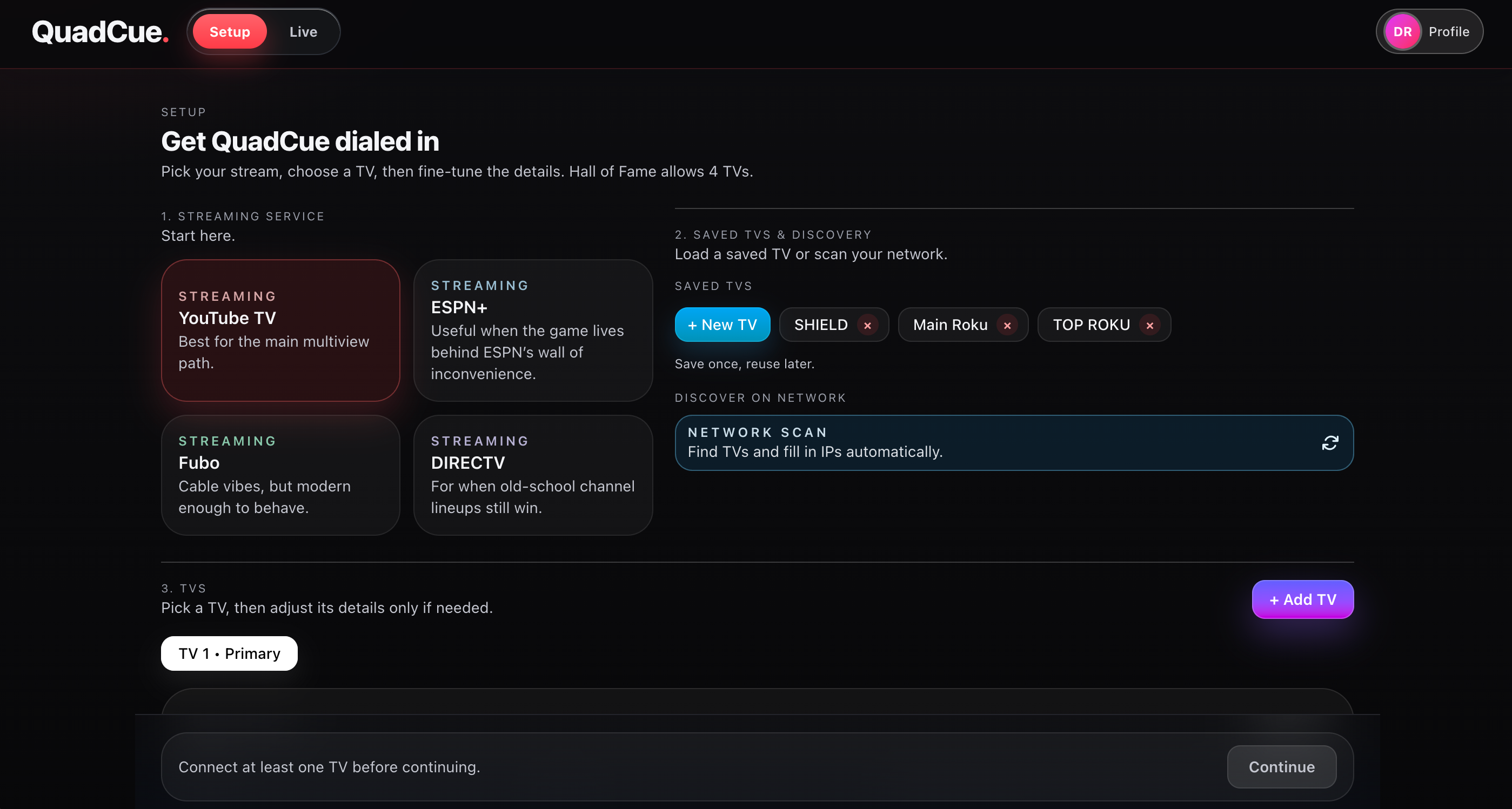
Pick the streaming service you use for game day so QuadCue knows the environment it is working with.
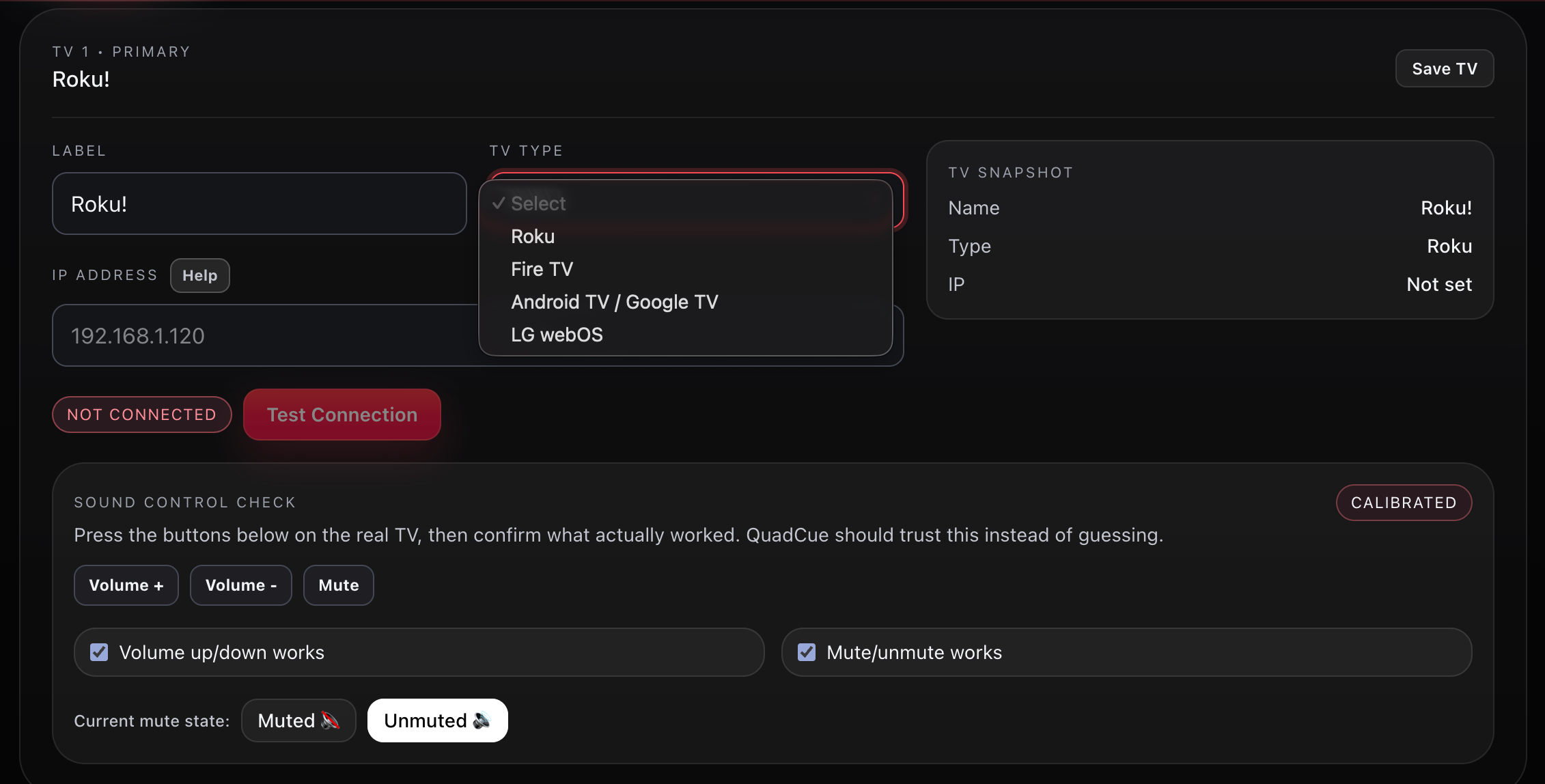
Connect your TV using one of our two methods: Network Scanning or manually entering the device. The app walks you through both paths step by step.
Use the Volume Check and Mute Check so QuadCue can confirm your TV supports the full experience properly.
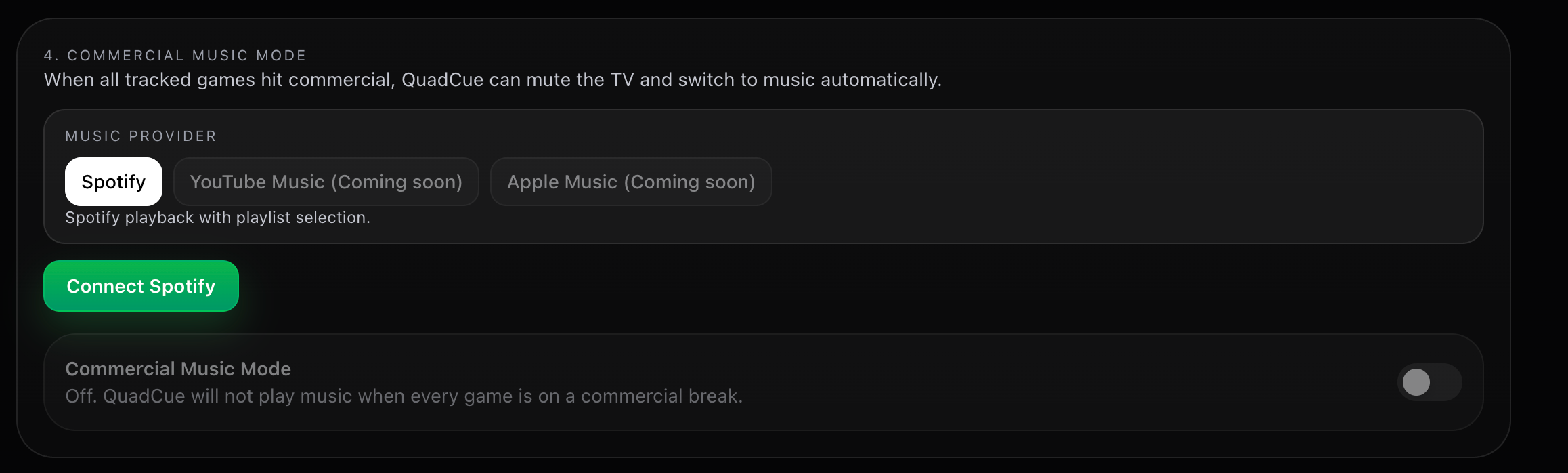
Upgrade to Pro, All Star, or Hall of Fame if you want Commercial Music Mode. When every game goes to commercial at the same time, QuadCue can mute the TV audio and play music instead from our supported providers.